The short answer
WhatsApp's 24-hour customer service window opens when a customer messages or calls your business, and inside it you can reply with any normal message. Once 24 hours pass without a new customer message or call, the only thing you can send is a message template Meta has approved. Your own messages never reopen the window.
Most teams meet this rule the hard way. A follow-up is scheduled for three days later, Meta rejects the send, and the customer never hears back. The rule is short, but it decides what your WhatsApp automation is allowed to do at every hour of a conversation.
What is the WhatsApp 24-hour customer service window?
It's a 24-hour timer that starts when a customer messages or calls your business. While it's open you can reply with any normal message: text, images, documents, buttons. Meta calls those service messages, and it doesn't pre-approve them.
Meta's documentation on sending messages puts it plainly: the timer starts when a WhatsApp user messages or calls you, and it resets to 24 hours if they message or call again before it runs out.
Most of what you'll see in production comes down to three details:
- The customer sets the clock, not you. Your own messages, templates included, never reopen or extend the window.
- Every new customer message or call resets the timer to a full 24 hours, even if the last window had only minutes left.
- The window is tracked per conversation, not per business account. So one customer can be inside it while another is outside.
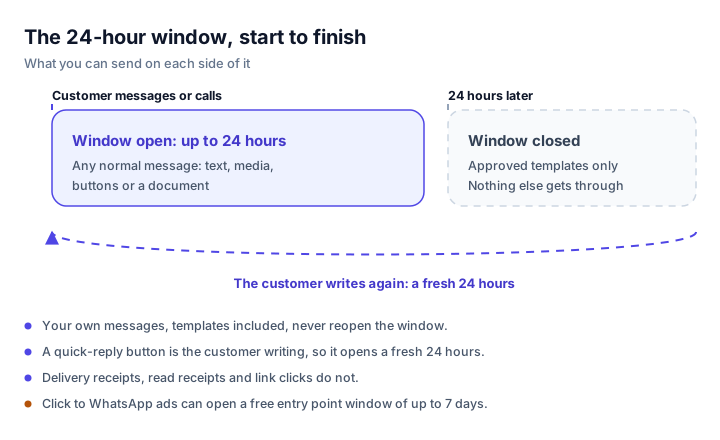
The customer opens the window, and only the customer can reopen it. A quick-reply tap counts as the customer writing.
Does a call open the window?
Yes. Meta's calling documentation says the window starts or refreshes when a user calls your business, whether or not you accept the call, and it also refreshes when a user accepts a call your business started.
What counts as opening the window
Only inbound activity from the customer does. A delivery receipt, a read receipt or a click on a template's website link isn't a new customer message, so it doesn't restart the timer. A quick-reply button is different: tapping it sends a message from the customer, so it opens a fresh 24 hours. Treat that conversation as open and answer in your own words instead of reaching for another template.
What can you send inside and outside the window?
| Inside the window | Outside the window | |
|---|---|---|
| Free-form text | Yes | No |
| Images, documents, buttons | Yes | Only as part of an approved template |
| Approved templates | Yes | Yes, and nothing else |
| Who starts the clock | The customer's last message or call | Closed until the customer writes or calls again |
Inside the window, Meta lets you send any of its service message types with no pre-approval. Outside it, Meta's template documentation is blunt: template messages are the only type of message you can send.
That's the whole trade. Inside the window you get flexibility. Outside it you get permission, and only for messages Meta has already approved.
What are the three template categories?
Every template falls into one of three categories. Meta's template categorisation guide defines them roughly like this.
Marketing
Messages meant to build awareness, drive sales or bring customers back. A renewal reminder with a discount code is the usual example. Marketing templates get recategorised more often than the other two, and they're the most sensitive to recipient feedback.
Utility
Messages that follow up on something the customer did or asked for: an order confirmation, a shipping update, a payment reminder. These carry most post-window follow-ups, because the customer usually expects them. Meta's rule is narrow though: a utility template has to be non-promotional, and either specific to the user's request or essential to a transaction.
Authentication
Messages that verify identity, usually a one-time code. This is the tightest category: a library template, an OTP button, no links, media or emoji, and short parameters. Nothing conversational belongs here.
Since April 2025, if Meta judges a utility template to be marketing, it approves it as a marketing template instead. Enforcement steps up from there: a warning, then a temporary limit on utility templates, then utility templates recategorised as marketing, then portfolio-wide consequences.
How does WhatsApp template approval work?
Meta reviews templates before you can use them. Its template review page says review happens automatically when a template is created or edited, can take up to 24 hours, and an approved template gets the status APPROVED and is ready to send. An account can create up to 100 templates an hour.
First attempts get rejected a lot, and usually for mechanical reasons:
- A variable at the start or end of the body, or two variables side by side.
- Sample values missing, or not matching the variable count.
- A footer or button that breaks Meta's length rules.
- Marketing language inside a template submitted as utility.
Editing, pausing and quality
An approved template isn't frozen, but the rules are tight. You can edit components, category or time to live while a template is approved, rejected or paused, with limits on approved ones, and you can't change the category of an approved template. A miscategorised template has to go back through review.
Templates also carry a quality rating that comes from recipient feedback. A red rating pauses the template automatically, first for a few hours, then longer, and eventually it's disabled. That's why a follow-up step needs a second approved template behind it.
Plan for the review queue. A follow-up sequence needs its templates approved before the first window closes, so submit them days ahead instead of on the morning a campaign goes out.
What happens if you send free-form text after the window closes?
Meta rejects the message. The send fails with error code 131047, which Meta's error code reference describes as more than 24 hours having passed since the recipient last replied. The suggested fix is to send a template message instead.
A few related codes are worth knowing, because in a log they all look like the same failure:
- 132015 and 132016 mean the template is paused or permanently disabled.
- 131049 means the per-user marketing message cap was reached.
- 131050 means the user opted out of marketing messages.
- 131063 means marketing templates are disabled for the business on the Cloud API.
The error isn't the real risk. Nobody noticing it is. If your tool or your team doesn't watch for these codes, the customer never hears back and the conversation goes cold with no visible failure. Any WhatsApp integration should either prevent the attempt or turn the rejection into an approved template on its own.
What does WhatsApp messaging cost now?
Pricing changed twice, and most guides are still wrong about both.
- Since 1 July 2025 WhatsApp bills per message instead of per 24-hour conversation, charged on delivery and only for business to user messages. There are now five pricing categories: marketing, utility, authentication, service, and Meta Business Agent.
- Since 1 October 2026 service messages are billed again, once you've used the first 1,000 free service messages per business phone number each month. The allowance doesn't roll over, and reactions don't use it up.
- Since 1 October 2026 utility templates sent inside an open window are charged again. They were free from July 2025 to September 2026, so a cost model built last year understates the bill now.
Meta's pricing page is the source for all three, and it changes without much notice. So read the pricing category off the delivery webhook instead of assuming it, and re-check the numbers before you quote a client.
The free entry point window
Click to WhatsApp ads create a different window. A customer who taps an ad on Android or iOS and messages you opens the usual customer service window, and your first reply inside it opens a free entry point that lasts up to 7 days. Messages inside that window aren't charged.
Two cautions. Since 28 September 2026 that window is 7 days. Before that it was 72 hours, and Meta's marketing pages still say 72 hours in places, while the developer pricing documentation says 7 days. And the ad has to be a click to WhatsApp ad on mobile: desktop and web entry points don't qualify.
How should follow-ups work around the window?
Because the rule cuts at 24 hours, a follow-up plan needs two layers, not one list.
Inside the window: write it fresh
Inside the window, follow-ups can be free-form, so write them from the conversation. Two or three useful nudges at hour offsets (say 2h, 6h, 12h) beat a long drip, and each one should say something specific to that customer, not a canned line with a name swapped in.
Outside the window: your approved templates
Once the window closes, only approved templates can go out. Each step should name the template and its language. Map every placeholder to real data, and add a condition so the step only fires while it still makes sense.
How Splice AI plans follow-ups around it
Splice AI runs the two layers as one sequence. The details are in the follow-up automation docs.
Inside the window, follow-ups are messages the agent writes with the conversation's context, scheduled at hour offsets. Outside it, Splice AI schedules the templates you configured at day offsets, synced from your connected WhatsApp Business Account, so it never invents a template name.
If a free-form message is attempted outside the window and Meta returns 131047, Splice AI sends the first matching template you configured instead. When you haven't configured one, the step is cancelled and not retried, so an empty template list means silence after 24 hours. Any scheduled nudge that would land outside the window is dropped before it can go out and bounce.
You can also write templates inside Splice AI and submit them to Meta. They're checked against Meta's formatting rules before submission, so non-sequential variables, missing sample values or an over-length footer get caught early. Approval or rejection then arrives as a notification, with Meta's reason.
When follow-ups should stop
Follow-ups aren't a fixed drip. Cancel pending steps when the customer replies, when the conversation reaches a terminal stage, or when someone pauses follow-ups on that conversation. A step that comes due while a teammate has taken over should be cancelled, not sent, so a bot message never lands on top of a human one.
A follow-up also goes through the same auto-send rules as any other reply: below your confidence threshold it lands in the inbox as a draft. Turning the WhatsApp channel off is a different outcome again: the pending step is cancelled outright, so there's no draft to review.
Does the same rule apply to Instagram DMs?
Instagram DMs follow the same in-window model, but Meta has no template equivalent there. Once the Instagram window closes, the conversation waits for the customer to write again. Plan for that difference: a WhatsApp sequence has an out, an Instagram sequence doesn't.
Checklist before you rely on WhatsApp follow-ups
- Reply fast. Inside the window you can write whatever the conversation needs, with no approval step.
- Get at least one utility template approved, and ideally a second as backup, before you depend on follow-ups.
- Keep in-window nudges few and specific.
- Watch the error codes rather than trusting that a send succeeded.
- Re-check the pricing page before you model costs for a client.
- Stop following up when the customer says no. Chasing someone who declined is how complaints start.
If you want an agent that answers inside the window from your own documents and switches to your templates when it closes, see the WhatsApp AI agent or read how it works. If you are still deciding between Meta's own agent and an agent on the Cloud API, read the comparison.
Frequently asked questions
Does my own message reopen the 24-hour window?
No. The window starts and resets when the customer messages or calls you. Messages a business sends, templates included, don't restart the timer.
Does tapping a quick-reply button in a template open the window?
Yes. A quick-reply button sends a message from the customer, so it opens a fresh 24 hours and you can reply with any normal message. Delivery receipts, read receipts and clicks on a template's website link don't do that.
Does a WhatsApp call open the window?
Yes. Meta says the window starts or refreshes when a user calls your business, whether or not you answer, and also when a user accepts a call your business started.
Are service messages free inside the 24-hour window?
Only up to a point. Since 1 October 2026 service messages are billed once you pass the first 1,000 free service messages per business phone number each month, and the allowance doesn't roll over. Reaction messages stay free.
Are utility templates free inside an open window?
No longer. Utility templates sent inside an open customer service window were free from July 2025 until 30 September 2026, and they're charged again from 1 October 2026. They stay free inside a free entry point window.
Is the free entry point still 72 hours?
No. Since 28 September 2026 the free entry point opened by a click to WhatsApp ad lasts up to 7 days. Meta's marketing pages still say 72 hours in places, but the developer pricing documentation is the current source.
How long does WhatsApp template approval take?
Meta reviews templates automatically when they are created or edited and says review can take up to 24 hours. An appeal against a rejection is also decided within about a day.
Why was my WhatsApp template rejected?
Usually it's a variable at the start or end of the body, two variables side by side, missing sample values, a footer or button that breaks the length rules, or marketing language inside a utility template.
Can I edit or pause an approved template?
You can edit the components, category or time to live only while a template is approved, rejected or paused, and an approved template allows limited edits in a rolling window. You can't change the category of an approved template, so a miscategorised one has to be resubmitted.
See it on your own conversations
Splice AI answers customers across WhatsApp, Instagram, email, phone and website chat.
See the WhatsApp agent